|
One subtle detail that I noticed in Tiger yesterday is that the active window now has a deeper shadow than inactive windows. It’s a small change, but it does make it easier to pick out the active window instead of just having to look for the window with colored buttons in the title bar. The screenshot at the right shows an example of this (topmost window selected). |
 |
Category: Macintosh (Page 4 of 6)
This post on MacDevCenter shows a cool dictionary feature of Tiger that I didn’t know about. Looks like it only works in NSTextViews (or WebViews), but since most apps use them it looks like it will be pretty handy. Hopefully apps like Word will add a capability like this in the future.
Well, Apple finally announced a release date for Tiger (April 29th). Going back to our release date estimates at WWDC last year, it looks like Joe got it, but I was only 17 days off. 🙂
Can’t wait to get a final copy of it here–it should be a great release.
Brent Simmons writes: “Are you a closer, minimizer, or hider?”
If I didn’t have virtual desktops, I would be a hider first, and then a minimizer. I almost never close windows that I’ll get back to in the next several days.
But I do have virtual desktops, and that makes my life so much easier. I have 8 desktops in Desktop Manager right now. Here’s what I use them for:
- News Desktop: NetNewsWire is always open here and I can get my news fairly quickly just by switching to this desktop.
- Chat/Seasonality Desktop: This is where I have my iChat windows displayed, so they don’t get lost in the shuffle. Since those don’t take up too much space, I also have Seasonality displayed on this desktop for quick weather checks.
- Email Desktop: ‘nough said, Mail.app’s window(s) are on this one.
- Web/iTunes Desktop: I usually try to keep all my Safari windows on this desktop, but since I hit the web from random tasks so often, I usually have Safari windows all over the place. I try to keep all web pages relating to one task in a single tabbed window. This way, if I want to come back to a task later, I can just minimize one Safari window and it’s all there for when I’m ready to work on it again. This is usually the desktop that iTunes gets thrown on as well.
- Development Desktops 1-4: These are the desktops I use for application development. Xcode will take 2-3 desktops, depending on how I am using it. Usually I’ll have my projects (Seasonality is one app project, and two Framework projects) open on one desktop, and the API reference open on a second desktop. If I am looking at code in another project as an example, I’ll open that project on a third desktop. Why 4 then? Well, when I do graphics work, sys admin stuff, or update the website I’ll sometimes need 1 or 2 more desktops to work with.
I don’t use Expose much, except on my development desktop with Xcode windows. Xcode opens so many different windows for debugging, run log, SCM, etc (and this is without opening separate document windows for each file), that it’s often difficult to keep track of everything. I have F13 mapped to the Expose command because it’s the largest F-key on the Apple keyboard which makes it easy to find. When Tiger comes out, I’ll probably have that mapped to showing the Dashboard, so I guess I’ll have to get used to hitting F12 instead.
As far as my dock is concerned, I have it displayed on the left side of my screen justified to the top. I would rather have the bottom of the screen for taller code windows and widescreen displays offer plenty of horizontal space. Finally, I turned off dock magnification because when I’m going for an icon I don’t want it to move on me all of a sudden.
Hmm… This ended up being a lengthy answer to a seemingly simple question. 🙂
Ever since ripping all of my CDs into iTunes, I’ve been looking for a good way to control what I’m hearing. Since I’m using Desktop Manager to have virtual desktops on my G5, I don’t want to go hunting for my iTunes window on a different desktop just to play/pause or change a track. The best solution I’ve found so far is to just use the dock menu for iTunes, but I want something that’s always there.
That’s where SizzlingKeys by Yellow Mug Software comes in. Not only does SizzlingKeys give you the option to set hotkeys for all kinds of operations built-in to iTunes (play/pause, previous track, next track, volume up/down, mute, show/hide iTunes), but it also adds quite a bit of functionality on it’s own. First there’s the “Floater” window that shows the current artist, title, album, and album art… I have mine displayed all the time, but you can toggle it with a hotkey or choose to just show it when the song changes. There are also hotkeys to bring up a window to search for songs to play or another window to pick a new playlist to listen to. Overall, it’s packed with features, the interface is pretty nice with all pop-up windows being nice rounded black transparent displays, and it’s free to boot. I give it two thumbs up, so check it out.
I have this “odd” behavior when using my computer occasionally; whenever something isn’t working the way I want it to, sometimes in the moment I will just right-click on the problem area to see if there’s anything in a menu to fix it. Well, this happened to me this morning when I was composing an email to someone. I was trying to spell the word migraine (rain doesn’t have an e at the end…it should be migrane or migrain), and in the instant of frustration, I right-clicked on the word. I just stopped in amazement, as Mail.app showed a contextual menu that started with a list of words that I might be wanting to use instead of my misspelled word. Wow…subconsciously I was expecting that to happen, but it caught me off-guard when it really did happen.
This got me thinking a little bit…Mail.app just uses NSTextViews, so maybe other apps that use NSTextViews will also behave this way. Sure enough, this works in TextEdit as well, so I can only assume it’s system-wide for apps that use that class.
I’m thinking this is a pretty big feature; and I can’t believe I haven’t noticed it before. I’m posting this here hoping I’m not the only one. 🙂
|
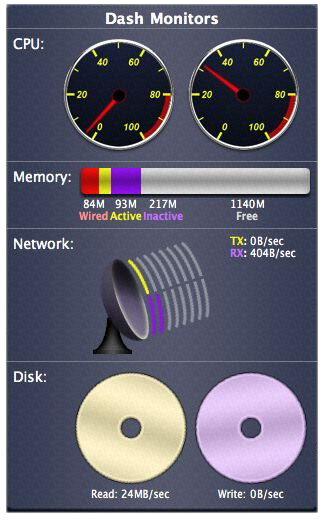
It’s been quite awhile since I’ve posted anything here, and that’s mostly a result of a busy holiday season, but Gaucho Software has been keeping me busier than usual as well. After the release of Dash Monitors 1.0, I’ve received a lot of interest from 3rd parties about it’s continued development. Since the second dashboard contest deadline was on January 5th, I decided to set aside everything else and really go all out on Dash Monitors development. When January 4th came around, I ended up with a product that is far better than it was at version 1.0. A screenshot the graphical view of the widget appears on the right (I know, the image quality sucks…software bug…). Just to give a bit of an explanation of the Disk monitor…as you transfer to/from the hard disk faster, the discs will spin faster. The other graphs work pretty much as you see them. So we’ll see if it wins the contest or not…either way I believe Dash Monitors will be a great Widget to sell once I polish it up some more and Tiger ships. Speaking of Tiger, the development builds are getting much more stable as time goes on, and I expect that Steve Jobs will announce an expected release date for Tiger at his MacWorld Expo keynote. Reminds me of a bar conversation back at WWDC where a few of us gave our initial predictions for a Tiger release date. Now I’m thinking May 15th might be a bit too late, but I’ll still stick with it. As some of you may know, I was getting ready to release another version of XRG when the Dash Monitors development really kicked up again. This week, now that I can take a bit of a breather, I’m back to finishing up XRG 1.1. It’s looking pretty good so far and I expect to release it as soon as I can test the temperature graph on the iMac G5 to make sure all the sensors are showing up correctly. I haven’t decided if I want to push for next week so I have a MacWorld Expo release, or if I want to wait until the week after when it will be less likely to be overlooked in all the other MacWorld software releases. |
Well, this is the first chance I’ve gotten to post since my Dual 2.5Ghz G5 arrived last Tuesday. Let’s just say I’ve been having a lot of fun with the new machine the past few days. The speed is quite amazing, and it’s faster than I was expecting it to be. This is also my first dual-processor machine (my last 3 Macs were all Powerbooks), so it’s wonderful to have a couple of things going and still have some spare processing power to keep the interface responsive and allow me to continue working. Actually, the only time I’ve really been able to peg the CPUs is when compiling. Speaking of compiling, while XRG takes 3-4 minutes to compile on my TiBook 667, the new machine gets the job done in 22 seconds. 🙂
Some people have had a problem with the amount of noise that the 2.5Ghz models make. Most of the time, the machine is really quiet, and I only hear a slight whooshing sound from the fans. However, there are times when the machine will start to heat up and when the fans kick in they are a bit loud. Of course “loud” is a relative term, and while I can see why some others have complained, the machine is much quieter than my TiBook is when it starts spinning its fan at “hair dryer” volume… 🙂 There is a difference in how long the fans make a lot of noise too. While the Powerbook fan will make a ton of noise for 5-10 minutes before cooling the Powerbook back down to a reasonable temperature, the G5 will spin up it’s fans for 10 seconds or so, and then they will drop back down to a medium level.
Anyway, the Internet is full of pictures of the G5, so I won’t post a lot here, but here a couple of pictures of my setup…
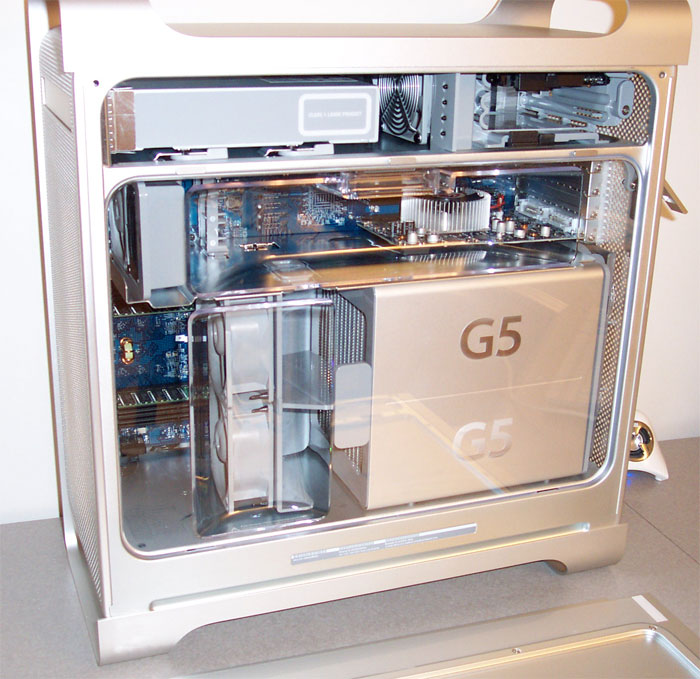
- A picture of the inside of the case. You can see the radiator for the liquid cooling on the G5s. The heatsink on the ATI 9800 XT video card is what takes the extra PCI slot…
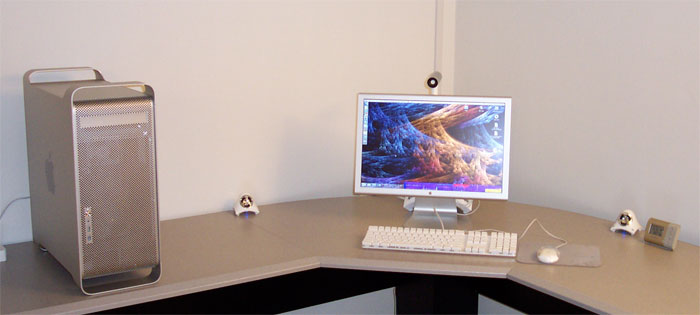
- A picture of the machine on my desk. I doubt my desk will stay this clean for long… 🙂
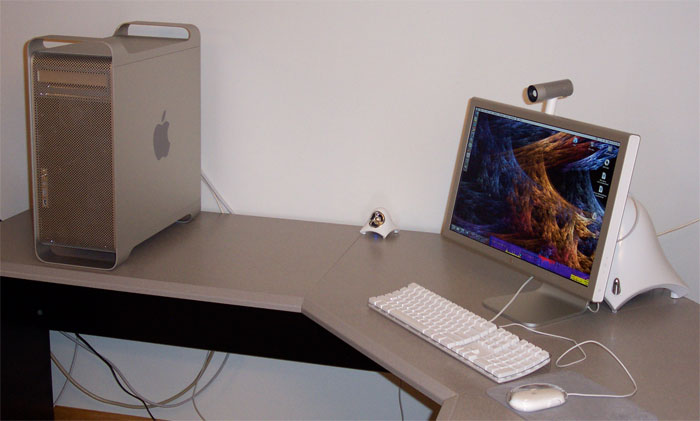
- Another shot of my desk from an angle. The subwoofer behind the monitor makes for some pretty balanced audio output, and I can’t even tell it’s there when sitting at my desk as the monitor does a great job of hiding it.
Back in June, I posted on getting an Ultra 10 and commented on the lack of a freeware program today comparable to XEarth back in the day. Well, awhile back, I finally found one that has a beautiful display of earth with the option to download current cloud maps and locations of storms. The application is called OSXplanet, and it’s a GUI wrapper by Gabriel Otte of an open source project called Xplanet.
The first thing you notice when starting the app is how nice the imagery of the earth is. The texture used to map on the earth has a fairly high resolution, so it looks great even on large monitors. The option to download storm locations made tracking the recent hurricane season easy. It’s also cool to watch storms cross the US in the cloud map.
Here’s a screenshot of it running on my Powerbook (covered slightly by a couple of other apps).

Well, the time has come to give my trusty 667Mhz TiBook some rest. I just ordered a new G5 today. Here are the specs:
- Dual 2.5Ghz G5
- 1.5Gb of RAM
- 250Gb Hard Drive
- 8x SuperDrive
- ATI Radeon 9800XT with 256Mb video RAM
- Bluetooth module
- 20″ LCD Cinema Display
- HP All-In-One Printer, Scanner, Copier
Apple has it’s rebate promotion going for HP printers, so I couldn’t turn down an All-In-One for $30. 🙂 I’m hoping it will ship sooner than the estimated 3-5 weeks. Others have posted in forums online saying they received theirs after only a week or two. Maybe I’ll be lucky as well.
Anyway, I’ll post a full report and some photos when the machine arrives.