Life, Technology, and Meteorology

Author: mike (Page 5 of 26)

The Story of Go

With Seasonality Go just released, I thought I would post an entry looking back at all that has led up to my latest application.

This story begins with a tale of developing Seasonality 2.0 for the Mac. Last year, I officially ended all my contract work to focus solely on Gaucho Software products. This has been a great change, but things have been slow going. I was working for many months on Seasonality 2.0, and by the end of last year it was very clear that I bit off more than I could chew. Seasonality 2 was supposed to be a fresh start with a brand new interface. I really think the app needed it, but never underestimate the time it takes to redo an application interface.

Probably the biggest amount of time has been spent on the new 3D globe view that will show radar, satellite, and other data. To say I spent months on this single view would be an understatement. Was it worth it? It is tough to say. Right now it doesn’t offer much more than the original map interface in Seasonality 1.x, but if you take into account the possibility for future expansion, then I think it was worthwhile code to work on. You can judge for yourself once the software is completed and released (this code is not used in Seasonality Go, not enough memory is available for all the required texture images on the iPad).

In January, I was getting ready to let a designer take a look at the interface to clean up the loose ends and take a shammy cloth to the app, when it happened. “It”, in this case, is the iPad. Apple announced the product, and suddenly I had to stop and rethink my development direction. Should I keep working on finishing up Seasonality 2.0, or should I set that on the back burner and go after the iPad as a new platform for Seasonality?

If you follow me on Twitter, you know the iPad won. It was a tough decision, because Seasonality 2 was almost in beta, and it was ever-so-tempting to head to that light at the end of the tunnel as quickly as possible. But the iPad really excited me as a new platform. I was already wearing my old MBP pretty thin, and was planning on replacing it with a MacBook Air, but the iPad was even smaller and lighter than the MBA, and it did 90% of what I needed it to at less than half the cost. It wasn’t tough to decide to purchase one as my new laptop, and if the iPad was going to be my new mobile platform, I wanted Seasonality to be there too.

I started working immediately on getting my weather and foundation frameworks compiling on the iPhone SDK. It took much less time than I anticipated to do this, which was a pleasant surprise. The views took a little bit longer, because UIKit on the iPhone/ iPad definitely has some distinct differences from Cocoa on the Mac. Overall though, it only took about a week to get the software running in a reasonable state on the iPad simulator.

It was at this point that I decided to talk to a UI designer. I enrolled the help of FJ de Kermadec. I had worked with FJ previously on the DynDNS Updater for the Mac, and I felt he really had what it took to knock a new Seasonality iPad interface out of the park. I was not disappointed. First, FJ worked on the Seasonality brand. We had to find a good way for the iPad version of Seasonality to fit into my product lineup. FJ came back with a complete branding document that described the future product lineup, complete with product names, icons, slogans, colors, fonts, and goals for each app. It was great, and I really got on board with the direction this project was taking. The new iPad app was to be called Seasonality Go, and it would be an iPad user’s go-to guide for weather on-the-go.

Next, FJ spent some time working on a document describing the features of Seasonality Go–how the software would look and behave. The plans set out by this document were ambitious, and it would be months before I would have the time to finish all of them, but the direction was solid and it was great to have this vision of a future Seasonality Go, even before I got a true start on the first version. We decided on a starting subset of functionality, and FJ got to work on a UI mockup for the features selected.

The mockup came in the middle of March, and I hit the ground running hard after that. The Seasonality Go design was nothing like the Seasonality Mac design, so I scrapped the view code from before and just built new views from the weather and foundation frameworks I have. Good progress was made, and by the time my iPad 3G arrived at the end of April, I actually had an app that was pretty usable to test on it.

I obviously wasn’t finishing the app for launch day of the iPad, but I didn’t want to wait too long to release the app. I decided I had to set a deadline, and I chose to finish it absolutely no later than WWDC. So from the end of April through the end of May, I spent pretty much 24/7 working on it. I would get up early, work all day, come up for dinner when Katrina got home from the office, spend an hour or two hanging out, then went back downstairs and work until 1-2am. I made a ton of progress, and by the third week of May, I had an app that was ready to beta test. The beta testers (thanks Elliot, Mary, and Jim!) hammered on it for about a week, and I had 1.0 ready a week later. I submitted it to the App Store on May 21st.

Looking back, it has been a long road, but I think this app really turned out to be a great piece of software. Altogether, it is around 45,000 lines of code, which is 3 times more than Seasonality 1.0 for the Mac. Now I will be getting back to finishing Seasonality 2.0. There are some amazing features there that didn’t make it into Seasonality Go, so stay tuned for the rest of what I have been working on…

Satellite Map Projections

Seasonality displays a IR composite satellite image that covers the whole globe. Unfortunately, during the past few weeks, the previous source of this satellite image ceased to update. It was time to write my own program to create a composite image.

The toughest part of this process (at least for us non-GIS types) is handling the geometry involved in converting map projections. It was extremely difficult for me to piece all of this together into something that works, as no one has posted any kind of solution online. I thought I might save some other people the trouble, and post the solution.

To create a composite, the basic algorithm is to iterate over a map of your chosen projection and to query the various satellite image sources for a color value for the latitude/longitude point you are currently generating. Once you have a color, you can simply set that color for the pixel that it applies to in your new map. I use a mercator/cylindrical style projection in the final map, with equal pixel distance for a change in latitude or longitude. This results in an image that is twice as wide as it is tall, with 360 degrees all the way around the equator along the X axis, and 180 degrees from the north pole to the south as the Y axis.

The tough part is that query to the source satellite image. The projection of these satellite images has a few different names. Officially it’s a Vertical Perspective Near-Side projection, but it’s also known as the GEOS projection. I boiled it down into a request:

float getPixelForLatLon(float latitude, float longitude)

Satellite images are 1-channel grayscale, so just returning a single float with the gray value works fine here. Now before we can understand what is going on, here are some of the rules and assumptions taking place here. First, the satellite is in geosynchronous orbit, at an elevation of 35,786 kilometers above the surface of the earth. The satellite is above the equator (so latitude=0) and the longitude varies based on the portion of the earth being covered.

With that in mind, let’s look at the pseudocode for this function.

// First convert from degrees to radians.
float latitudeRad = degrees2Radians(latitude);
float longitudeRad = degrees2Radians(longitude);
float satelliteLonRad = degrees2Radians(satelliteLongitude);

// Now for a bunch of trig equations.

// c_lat is the corrected angle the given latitude is above the equator
// after taking into account the ellipsoid shape of the earth.
// Here, 0.993243 is the polar radius (6356.5838 km)
// divided by the equator radius (6378.1690 km).
float c_lat = atan(0.993243 * tan(latitudeRad));

// r_L is the radius from the center of the earth to the given point.
float r_L = 6356.5838 / sqrt(1 - (0.00675701 * cos(c_lat) * cos(c_lat)));

// r_[123] are xyz components of the vector from the satellite
// to the point on earth.
float r_1 = 42164 - (r_L * cos(c_lat) * cos(longitudeRad - satelliteLonRad));
float r_2 = -1 * r_L * cos(c_lat) * sin(longitudeRad - satelliteLonRad);
float r_3 = r_L * sin(c_lat);

// r_N is the distance from the satellite to the point on earth.
float r_N = sqrt(r_1 ** 2 + r_2 ** 2 + r_3 ** 2);

// Finally we get to an intermediate x, y coordinate.
// These are NOT x, y coordinates in the image.  Rather,
// they are angles (in radians) that the satellite camera
// would have to rotate off-center to see that lat/lon
// location.  If x = y = 0, then the camera is looking directly
// at the earth point underneath it.  Positive X rotates to the
// right, positive Y rotates down towards the south.
float int_x = atan2(-r_2, r_1);  // Equivalent: atan(-r_2 / r_1)
float int_y = asin(-r_3 / r_N);

// We got to this point without knowing anything about our
// actual satellite image, now it's time to look at the
// full disc satellite image we are working with.
// Note that coordinates x = y = 0 in the upper-left corner
// of the image.

// offset_x is the number of pixels that pad the disc on the left.
// offset_y is the number of pixels that pad the disc on the top.
// x_radius is the radius of the disc in the horizontal direction.
// y_radius is the radius of the disc in the vertical direction.
float x = offset_x + x_radius + (int_x * 6.6073212476 * x_radius);
float y = offset_y + y_radius + (int_y * 6.6073212476 * y_radius);

// Here, get the pixel in the satellite at position x, y, and return it.

That’s it! You now have a color from the x, y position in the full disc satellite image, and you can paint that in the final satellite composite. Note that the satellite composite will not have data on the poles, because the satellite can only see to a latitude of 81.3 degrees. You can see sample output of a composite image using this method (overlaid on a standard earth map). To find more information about how this works, check out the WMO document number C1-SP-810-004.

Canon Medium Telephoto Lens Review

Like most first-time DSLR owners, last year when I bought a Canon Rebel XSi, I started out with the kit lens (18-55mm f3.5-5.6 IS). This particular lens is pretty good as far as kit lenses are concerned. It’s reasonably sharp if you stop down the aperture a bit, and the image stabilization (IS) helps in low-light situations, but one drawback is the relatively short zoom range. 18-55mm (equivalent to around a 3x zoom on a P&S camera) will be okay for most short-range situations and landscape photography, but if you want to take photos from a distance (during nature or sports photography for example), then you really need a deeper zoom. I decided it was time to buy a medium zoom lens around 200mm (10-12x zoom). These are also called standard telephoto lenses, as opposed to the super-telephoto (300mm-800mm) lenses that are often much more expensive.

When shopping for a lens like this, it’s easy to quickly become overwhelmed by the dizzying array of choices available. I narrowed my requirements a bit to help make the decision. I wanted the lens to grow with my photography. Lenses last a long time, so it’s usually a good idea to buy quality lenses that you will be happy with in the long term. I also wanted a lens with a relatively wide aperture so I could get quick enough frame rates for full-zoom images. (Typically, when taking photos, you want your shutter speed to be 1 divided by the focal length on your lens. So with a 200mm zoom, you will want your shutter to be at least 1/200th of a second or faster. This rule doesn’t mean you can’t get sharp photos with a slower shutter speed, it’s just a general guideline for taking sharp photos while hand-holding the camera.) My budget was flexible, but I was targeting somewhere around $500.

After narrowing my criteria, I was looking at 2 different lenses in my price range: the Canon 70-300mm f/4-5.6 IS and the Canon 70-200mm f/4L. The Canon 70-300mm goes for just over $500, and some of it’s finer points include built-in IS and an extended range to 300mm. The Canon 70-200mm is just over $600, and is a member of Canon’s professional L-series. L-series lenses are generally very sharp and built with metal exteriors making them more durable. It’s worthwhile to note that Canon makes 3 more 70-200mm L lenses, all of which are far outside of my budget: the f/4L IS ($1100), the f/2.8L ($1200), and the f/2.8L IS ($1700).

I also looked at 2 lenses just above my price range (the Tamron 70-200mm f/2.8 and the Sigma 70-200mm f/2.8). These lenses cost around $800, so they are more expensive than the f/4L, but they are also offer the wider f/2.8 aperture and cost a lot less than Canon’s f/2.8 model. I thought I would give them a chance to see if it would be worth spending an extra couple hundred dollars for the faster glass.

Image Quality

This is the most important consideration for me when purchasing a lens. If you’re going to spend a lot of money on a lens, you want it to be sharp…tack sharp. To my surprise, I stopped considering the Canon 70-300mm much quicker than I expected to. I came across a review comparing it to the Canon 70-200mm lens. About halfway down the page, they have a sample photo showing a 100% crop of the 2 lenses (as well as a less-expensive Canon 55-250mm IS lens). The 70-200mm is significantly sharper to my eyes, and right away I knew it would be worth it for me to pay the extra $100 for the 70-200mm lens. This kind of disappointed me, because the 70-300mm has IS, which can make a big difference when you aren’t using a tripod, but I decided that while I could learn to hold the camera steady, the 70-300mm lens could never learn to take sharper photos.

Between the three remaining 70-200mm lenses, image quality is a lot closer. It was a close call, but the Canon lens seemed just a little bit sharper to me when mounted on a tripod, but not so much sharper to disqualify the Tamron and the Sigma. The Tamron and Sigma lenses could both take photos at f/2.8, meaning they could take a picture at twice the shutter speed of the Canon. Faster shutter speeds = sharper photos when hand-holding the camera, so this one is a real tossup.

Weight

All of these longer zoom lenses have a fairly substantial weight, but the f/2.8 lenses are significantly heavier. The 70-300mm and the Canon 70-200mm weigh in at around 1.5 lbs, whereas both f/2.8 lenses weigh around twice as much. It doesn’t sound like a lot, but it makes a difference in comfort when you are shooting without a tripod. The heavier lenses were fine for a few quick shots, but after holding them for a few minutes, it started to be a strain and the extra weight made them more difficult to hold steady. Also, it’s nice to have a lighter lens when traveling, and the f/2.8 lenses really made me question if I would want to carry them along on longer trips. The best lens is the one you’ll use, so here the lighter lenses came out ahead in my book.

Build Quality

Both the Sigma and the Canon have excellent build quality, while the Tamron lagged behind a little in this respect. It’s not that the Tamron lens is bad, just in the middle-of-the-road. The outside of the barrel is plastic, which just doesn’t feel as nice. Also, the Tamron lens doesn’t have full-time manual focusing like the others. You have to slide the focusing ring to switch to manual focus, which is easy to do, but full-time manual focusing on the other lenses is a lot nicer. The Sigma lens has a very nice smooth feel on the outside. It is something of a combination between felt and rubber. If Apple used the same exterior coating on laptops, I would be thrilled. On the flip side, it seemed like it might be the type of material that could get scuffed if you scratched it. The Canon lens has rubber grips for the focus and zoom rings, and the rest is metal. It feels very solid, but I imagine it might make the lens pretty cold when taking photos in the winter time.

Focusing

The deciding factor for me between the remaining 70-200mm lenses was the focusing speed and accuracy. The USM motor in the Canon is very quick to focus, and almost silent when focusing. The Tamron motor, on the other hand, is relatively noisy and I often waited for it to snap into focus. The Sigma is a quiet HSM focusing motor, but it still doesn’t feel like it focuses quite as quickly as the Canon. Since I would like to use the lens for some sports photography, where focusing speed is king, the Canon 70-200mm wins this one hands down.

Bringing it Together

In the end, I’m the happy owner of a Canon 70-200mm f/4L. I’ve had a few weeks to get out and take some nature photos with the lens (I’ve included some here), but I’m still getting used to it. I have found that it usually takes 3-6 months to get to know a lens, and this one has not been an exception. So far though, the image quality has been great, and I’ve been practicing holding stances and relaxing when taking photos, in order to keep the camera shake to a minimum. I think this lens will be in my camera bag for a very long time.

Building a SoHo File Server: The Hardware

During the past few weeks, I have been working on a solution to help consolidate the storage I’m using for both personal and business files. Weather data is pretty massive, so any time I do some serious weather server work for future Seasonality functionality, I’m almost always using a ton of disk space to do it. On the home side, media files are the dominant storage sucker. With switching to a DSLR camera and shooting RAW, I’ve accumulated over 100GB of photos in the past 6 months alone. I’ve also ripped all my music into iTunes, and have a Mac with an EyeTV Hybrid recording TV shows to watch later. All of this data adds up.

Before starting this project, I had extra hard drives dispersed across multiple computers. My Mac Pro (used as a primary development box) had weather data, a Linux file server held media and some backup, the older Mac has the media files, and my laptop has just the essentials (but as much as I can possibly fit on it’s 320GB disk).

Requirements

The requirements for this my new storage solution are as follows…

  1. Provide a single point of storage for all large files and backups of local computers on the network.
  2. Support more than 10 disks, preferably closer to 20. I have 7 disks ready for this box right now, another 4 coming in the next 6 months, and want to have more room after that to grow.
  3. Offer fast access to the storage to all machines on the network. I have a gigabit network here, and I would like to see close to 100MB/sec bandwidth to the data.
  4. Rackmounted. I recently setup a rack for my network equipment in another room of the house. A file server should go in that rack, and have an added benefit of keeping me from having to listen to a bunch of disks and fans spinning while I work.
  5. Keep a reasonable budget. This setup shouldn’t break the bank. Fiber Channel SANs costing $5k+ need not apply.

There are several ways to attack this problem. Here are just a few of the options that could potentially solve this storage problem.

Option 1: Buy a Drobo

The easiest solution to this problem is to just go out and buy a Drobo. Drobos will let you just pop in some hard drives and it takes care of the rest (redundancy, etc). Unfortunately, being the easiest option comes with some drawbacks. First is cost… A 4 bay Drobo goes for around $400, and the more formidable 8 bay model starts at $1500. With 10+ drives I would need to spend $1200 at a minimum, and that is more than I want to budget. The second disadvantage is speed. I’ve heard from many people who have the 4 bay model that copying files to/from the device take a long time (maybe only around 20MB/sec bandwidth). If I’m paying a premium, I want fast access to the storage.

Option 2: Buy an external multi-bay eSATA enclosure

This is an appealing option, especially if you want all the storage to just be available on a single machine. It’s directly attached, so it’s fast. The enclosures can be relatively inexpensive. The main problem with this option for me was that buying an enclosure with space for 10+ disks was more costly, and having that many disks spinning at my desk would be pretty loud and distracting. Furthermore, I would like to have a storage system that is all one piece, instead of having a separate computer and storage box.

Option 3: Buy a NAS

Cheap NAS boxes are a dime-a-dozen these days. I actually already went down this route a couple of years ago. I bought a 1TB NAS made by MicroNet. The biggest drawback was it was too slow. Transfer rates were usually only around 10MB/sec, which got to be a drag. The better NAS boxes these days offer iSCSI targets, giving you some speed benefits as well as the advantage of your other client computers seeing the disk as DAS (direct attached storage). Again though, check out some of the costs on a rackmount NAS supporting 10+ disks…they can get to be pretty expensive. This time I’m going to try another route.

Option 4: Build out a more advanced Linux file server.

This is the option I chose to go with. With my current Linux file server, I can get around 75MB/sec to a 3 disk RAID 5 using Samba. Rackmount enclosures supporting several disks are fairly inexpensive. All the storage is in one place and, if you know something about Linux, it’s pretty easy to manage.

The Chassis

I’m using my current Linux file server as a base, because it’s already setup to fit my needs. I needed to find a new enclosure for the Linux server though, because my current case will only hold 4 hard drives. I recently started to rack up my network equipment, so I began looking for a rackmount enclosure (3-4U) that would hold a bunch of disks. I ended up finding the Norco RPC-4020. It’s a 4U chassis with 20 hot-swap disk trays. The disk trays all connect to a backplane, and there are two different versions of the case depending on what kind of backplane you would like to have. The first (RPC-4020) has direct SATA ports on the backplane (20 of them, one for each disk). The second (RPC-4220) has 5 mini-SAS ports on the backplane (one Mini-SAS for 4 disks), which makes cable management a little easier. I went with the cheaper (non-SAS) model in an effort to minimize my file server cost.

The Controllers

After finding this case, the next question I had to answer was what kind of hardware I would need on the host side of these 20 SATA cables. This ended up being a very difficult question to answer, because there are so many different controllers and options available. My motherboard only supports 4 hard drives, so I need controllers for 16 more disks. Disk controllers can get to be pretty expensive, especially when you start adding lots of ports to them. A 4 port SATA PCI-Express controller will run you about $100, and jumping up to 8 ports will put you in the $200-300 range for the cheapest cards. When buying a motherboard, try to find a model with decent on-board graphics. That way, you don’t have to waste a perfectly good 16 lane PCI-Express slot on a graphics card (you’ll need it for a disk controller later).

This is also the point where you will need to decide on hardware or software RAID. If you are going for hardware RAID, there’s just no other way around it, you’ll have to spend a boatload of money for a RAID card with a bunch of ports on it. I’ve been using software RAID (levels 0, 1, 5, and 10) on both FreeBSD and Linux here for almost 10 years, and it’s almost always worked beautifully. Every once in awhile I have run into a few hiccups, but I’ve never lost any data from it. Software RAID also has the benefit of allowing you to stick with several smaller disk controllers and combining the disks into the RAID only once you get to the OS level. So with that in mind, I choose to stick with software RAID.

Depending on the type of computer you are converting, you might be better off buying a new motherboard with more SATA ports on it. Motherboards with 8 and even 12 SATA ports are readily available, and often are much less expensive than an equivalent RAID card. With more SATA ports on the motherboard, you have more open PCI(-Express/X) slots available for disk controllers, and more capacity overall.

Digression: SAS vs. SATA

There are many benefits to using SAS controllers over SATA controllers. I won’t give a comprehensive comparison between the two interfaces, but I will mention a couple of more important points.

1. SAS controllers work with SATA drives, but not the other way around. So if you get a SAS controller, then you can use any combination of SAS and/or SATA drives. On the other hand, if you just have a SATA controller, you can only use SATA drives and not SAS drives.

2. SAS is much easier to manage when cabling up several disks. Mini-SAS ports (SFF-8087) carry signals for up to 4 directly attached disks. Commonly, people will buy Mini-SAS to 4xSATA converter cables (watch which ones you buy, “forward” cables go from Mini-SAS at the controller to SATA disks, “reverse” cables go from SATA controllers/motherboards to Mini-SAS disk backplanes). These cables provide a clean way to split a single Mini-SAS port out to 4 drives. Even better if you get a case (like the 4220 above) that have a backplane with Mini-SAS ports already. Then for 20 disks, you just have 5 cables going from the RAID controller to the backplane.

PCI Cards

The least expensive option to adding a few disks to your system is buying a standard PCI controller. These run about $50 for a decent one that supports 4 SATA disks. The major drawback here is the speed, especially when you start adding multiple PCI disk controllers to the same bus. With a max bus bandwidth of just 133MB/sec, a few disks will quickly saturate the bus leaving you with a pretty substantial bottleneck. Still, it’s the cheapest way to go, so if you aren’t looking for top-notch performance, it’s a consideration.

1 Lane PCI-Express Cards

PCI-Express 1x cards are a mid-range price consideration. The models that support only 2 disks start pretty inexpensive, and you’ll see the price of these go all the way up to the couple hundred dollar range. Most of the time, these will not support more than 4 disks per card because of bandwidth limitations on a 1 lane PCI-Express bus. A 1x slot has about double the bandwidth of an entire PCI bus (250MB/sec). The other advantage here is when adding more than one card, each card will have that amount of bandwidth, instead of sharing the bandwidth with multiple cards in the PCI slots.

4 Lane PCI-Express Cards

By far the most popular type of card for 4 or more disks, PCI-Express 4x cards have plenty of bandwidth (1000MB/sec) and are fairly reasonably priced. They start at around $100 for a 4 disk controller, and go on up to the $500 range. What you have to watch here is to check how many 4x slots you have on your motherboard. It doesn’t do you any good to have several 4x cards without any slots to put them in. Fortunately, most newer motherboards are coming with multiple 4x or even 8x PCI-Express slots, so if you are buying new hardware you shouldn’t have a problem.

For my file server, I ended up with a RocketRAID 2680 card. This PCI-Express 4x card has 2 Mini-SAS connectors on it, for support of up to 8 disks (without an expander, more on that later). Newegg had an amazing sale on this card, and I was able to pick it up for half price. A nice bonus is its compatibility with Macs, so if I ever change my mind I can always move the card to my Mac Pro and use it there.

Using Expanders

Expanders provide an inexpensive way to connect a large number of disks to a less expensive controller. Assuming your controller provides SAS connections (it’s better if it has a Mini-SAS port on the card), you can get a SAS expander to connect several more disks than the controller card can support out of the box. When considering a SAS expander, you should check to make sure your RAID controller will support it. Most SAS controllers support up to 128 disks using expanders, but not all do.

A typical expander might look something like the Chenbro CK12804 (available for $250-300). Even though this looks like a PCI card, it’s not. The expander is made in this form factor to make it easy for you to mount in any PCI or PCI-Express slot that is available on your computer. There are no leads to make a connection between this card and your motherboard. Because of this, the expander draws power from an extra Molex connector (hopefully you have a spare from your power supply). You simply plug a Mini-SAS cable from your controller to the expander, and then plug several Mini-SAS cables from the expander to your disks. With this particular expander, you can plug 24 hard drives into a controller that originally only supported 4. A very nice way to add more capacity without purchasing expensive controllers.

The drawback is that you are running 24 drives with the same amount of bandwidth as 4. So you are splitting 1200MB/sec among 24 disks. 50MB/sec for a single disk doesn’t seem too unreasonable, but if you are trying to squeeze as much performance out of your system as possible, this might not be the best route.

Power Supplies

When working with this many disks, the power supply you use really comes into play. Each 7200 rpm hard drive uses around 10-15 watts of power, so with 20 drives you are looking at between 200-300 watts of power just for the disks. Throw in the extra controller cards, and that adds up to a hefty power requirement. So make sure your power supply can keep up by getting one that can output at least 500 watts (600-750 watts would be better).

Results

So putting all this together, what did I end up with? Well, I upgraded my motherboard by buying an old one off a friend (they don’t sell new Socket 939 motherboards anymore), this one has 8 SATA ports on it. Then I bought a RocketRAID 2680 for another 8 disks. What about the last 4? Well, for now I’m not going to worry about that. If I need more than 16 disks in this computer, I’ll most likely get another 4 disk (1x PCI-Express) controller and use that for the remaining drive trays. What did it cost me? Well, the chassis, “new” motherboard, RAID card, and some Mini-SAS to SATA cables came in just over $500. Components that I’m using from another computer include the power supply (550 watt), processor, memory, and of course the disks I already have. Pretty reasonable considering the storage capacity (up to 32TB with current 2TB drives and without using the last 4 drive bays).

Next will come the software setup for this server, which I’ll save for another blog post.
A New Mac

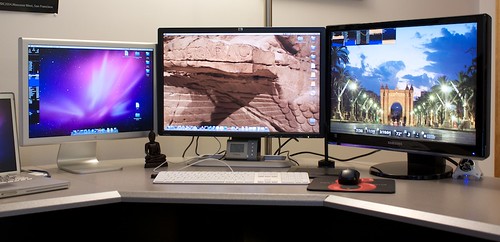
Gaucho Desk - July 2009

I had been waiting for Nehalem Mac Pros to be released since the middle of last year, so I was pretty excited to hear Apple release them earlier this spring when I was in Thailand. Of course, I didn’t have time while abroad to actually put in an order, so I waited until I got back and ordered one in the beginning of April with these specs…


  • 8 x 2.26Ghz Nehalem Xeons
  • 12GB of 1066Mhz DDR3 RAM
  • Radeon 4870 graphics card with 512MB of VRAM
  • 2 1TB hard drives in a RAID 0 configuration
  • 1 640GB hard drive for Time Machine


It was a tough decision between the 8 core 2.26Ghz model and the 4 core 2.66Ghz model. The 4 core model was a bit cheaper. It is also faster at single-threaded processes, but with the drawback of only having half as many cores. Since compiling code is the primary job of this Mac, and compiling takes advantage of as many CPUs as you can throw at it, I decided to go for the 8 core model.

I’m glad I did, because for compiling this machine is a beast. You can check out a screencast I captured showing XRG compiling subversion below. With 16 CPUs (8 real + 8 hyperthreading), I had to create a new CPU graph on XRG to show them more efficiently. The top shows a composite of all CPU activity, and the bottom shows a bar chart with immediate CPU usage for each of the 16 CPU cores.

Screencast

All in all, this Mac is more than 6 times faster at compiling than the Dual 2.5Ghz G5 it replaces, which definitely saves me quite a bit of time day in and day out while working.

When ordering this Mac, I also ordered a second 24″ LCD. Now, having 2 24″ displays (an HP LP2475w and a Samsung 2493HM) makes usability a lot smoother. Plenty of space to spread out all the windows I’m working with. While coding, I can have Xcode take a full display, and then run the app on the second display, never having to worry about covering up the debugging interface while testing something.

I posted two other photos of the machine. All in all, it’s a dream system for me. Here’s hoping this dream lasts for a very long time.

Traveling the World

I’ve spent the last four months traveling the world. It sounds wierd to hear myself say that, because while I’ve traveled a good amount in the past, I’ve never really thought of myself as a world traveler. In the past four months, I’ve spent about six weeks at home. No matter how exotic travelers describe it, not being at home much during an extended period of time is difficult. Your body is put under a lot of stress by constantly changing its environment. On the other hand, as long as you can sustain the will to keep going, traveling can be a very rewarding experience.

Before this past February, my travels have been restricted to a single continent, North America. I’ve been around most of the US (35 of the 50 states), and have visited Canada, Mexico, and a handful of the Caribean islands, but I had always felt that I had been missing something. After the past four months, I no longer feel that way. Sure there are still a lot of places I have yet to see, but I’m happy with the world I’ve seen for the time being.

As I mentioned in a previous blog entry, I spent four weeks in Asia, or more specifically the country of Thailand (I was also fortunate to have a layover in Tokyo, though I don’t really count that as visiting Japan which I would still like to do someday). Then, six weeks later Katrina and I took off to spend three weeks in Spain and France. Finally, after only 5 days of being back from Europe, we left again to drive across the US to Arizona, where we backpacked to the bottom of the Grand Canyon and back up. On the way home, we finished the Route 66 trip we started two years ago, and finally made it back a few weeks ago. Needless to say, I don’t plan to leave our local area again for quite some time.

You can’t travel like this without coming back a different person, and these trips were no exception. The depth of culture, variety of food, and multitude of people I have interacted with from all over has made a profound impression on me–both as an individual and as a member of the great worldwide society of humankind. Where I was once focused on a division of wealth between local economic classes, I have now discovered a much larger division of wealth between nations. Where I used to focus on the differences between cultures, I have found the core values that make us all the same at heart. And where I once had a temporal realization of monuments from only the past couple hundred years, I have now seen human-made things from past millenia. All of these things combine in a seemingly paradoxical way of both a bigger earth and yet a smaller human race.

There’s just way too much to tell here in one single blog post, so I might follow this up later down the road. I’m in the process of posting photos from these trips to my Flickr account, and I try to add descriptions there about each of the photos to give people the “story” of the photo. Check it out if you’re interested.

Thailand Meteorology Department

Note: I wrote this entry a couple of weeks before actually posting it.

I’ve been spending this past month in Thailand as part of a Rotary Group Study Exchange team. It’s both a cultural and vocational exchange, and you can read more about our experiences at the team’s blog.

Today (March 26th), I toured the Thai Meteorological Department, which is a division of Thailand’s Ministry of Information and Communication Technology. I had a chance to see both their weather forecast office, as well as their seismology office. I thought I would write about some of the differences I observed between meteorology in America and meteorology in Thailand.

The first thing I saw when walking into the forecast office is a surface chart. Surface charts look pretty similar to the ones we use in America. There is slightly more information plotted at each surface location. I didn’t look closely enough to figure out exactly what the values were, but there were probably 2-4 additional variables plotted for each surface observation. Another difference I noticed (but only realized later on) was the lack of fronts being plotted. Lows and highs were plotted as usual, even using the typical red L and blue H instead of the Thai equivalent characters. But there weren’t any fronts plotted, which I find to be interesting. I wish I would have realized it earlier so I could have asked them about it. The surface plots are all done by hand, and I was surprised this was the case because they had plenty of good computing hardware that should have been able to do the job.

Speaking of hardware, most of the machines were running Windows, but I did see some Linux boxes there, and even an SGI box.

Next was the upper air charts, and these plots were quite a bit different. In America, upper air charts typically start with plotting the geopotential height, thus allowing you to interpolate the relative wind flow. The upper air charts in Thailand start with the wind flow, where meteorologists use the wind plots to generate streamlines, and from there you can deduce what the height contours would look like. After talking to another meteorologist here in Michigan, I learned that streamlines are used instead of isobars because of the lack of significant Coriolis Force in the tropics, so geostrophic balance doesn’t really apply and thus isobars on an upper-air chart are much less useful.

They capture vertical atmospheric profiles a couple times a day, just like in America. Instead of using a Skew-T chart, they use a slightly different chart. There are 11 upper air stations in Thailand (roughly the land area of the state of California), which gives a spread similar to that found in America.

Radar is one aspect that is sorely lacking in Thailand. They have some radar stations, but the coverage just isn’t there, so they typically use surface rain gauge observations to plot where it’s currently raining (what a novel idea! :-)). There are over 800 rain gauges currently spread about the country, so the map they showed me had a surprisingly high resolution, and showed actual precipitation data instead of estimated precipitation data. Unfortunately, a rain gauge doesn’t give you any kind of radial velocity data. This is less critical in the tropics, but can still come in handy while forecasting.

They have developed their own weather forecast model, but they also use the ECMWF, WRF, and 2 other Asian forecast models that I can’t think of at this time. NWP is used to plot the model output data, which you can view directly on their website.

Forecasts are issued 4 times a day, and the office I visited issues forecasts for the entire country of Thailand, as well as a couple of neighboring countries. There are roughly 15 meteorologists on staff in the forecast office, which is on the 11th floor of the building I visited.

It’s tough to find meteorologists to work there because there just aren’t many meteorology degrees offered in the country. One university offers a Masters degree in meteorology, and typically students will first get a bachelors in physics (or another hard science), before specializing in meteorology. Only about 20 meteorologists graduate each year from the program, so those students definitely have a good chance of finding a job after completing their studies.

Setting up a Mac/iPhone VPN to a Cisco ASA Router

I bought a Cisco ASA 5505 about 6 months ago, and love it so far. While setting up a VPN between my iPod touch and the ASA was straightforward, I was less fortunate when trying to get the same thing working from my MacBook Pro. Here’s a description of how to configure the ASA VPN so both devices work.

First, let me give a brief outline of what I am trying to do. I want both my iPod touch and my MacBook Pro to be able to connect to the Cisco ASA box over a VPN interface. Once the VPN has been established, I want all of my internet traffic to go first to the ASA and then out to the rest of the internet from there (otherwise known as split-tunneling in network jargon). With a default VPN setup on the ASA, this works fine from the iPhone, but from the Mac I was only able to access the internal network. The rest of my internet traffic just wouldn’t get sent. Note that this configuration will not work with Mac OS X’s L2TP VPN client, you’ll need to install the Cisco VPN client instead.

The solution isn’t too difficult. First, setup a fairly default VPN configuration on the ASA. Use the VPN Wizard on the ASDM console with the following settings…

Page 1 VPN Tunnel Type: Remote Access VPN Tunnel Interface: outside Check the box to enable inbound IPsec sessions to bypass interface access lists.

Page 2 Select Cisco VPN Client for the client type.

Page 3 Select Pre-shared key for authentication method, typing a password into the Pre-Shared Key field. Type in a Tunnel Group Name to use, which will be used again later. I’ll use VPNGroup as an example.

Page 4 Authenticate using the local user database.

Page 5 Make sure your ASDM username is in the list on the right side, so you are able to connect to the VPN with that account.

Page 6 If you haren’t already, create a IP address pool to use for VPN connections. This is an IP range within your internal network. I use 192.168.1.128 with a subnet mask of 255.255.255.240.

Page 7 Type in your primary and secondary DNS servers into the box. I also set my default domain name to my domain (gauchosoft.com).

Page 8 Leave everything default: Encryption is 3DES, Authentication is SHA, and DH Group is 2.

Page 9 Again, leave everything default. Encryption is 3DES and Authentication is SHA.

Page 10 Leave everything as-is, except check the box at the bottom to enable split tunneling.

Page 11 Click Finish and you are done.

Now, your iPhone should be working just fine. Just go into the VPN preferences and setup a new IPSec configuration with your server, user account/password, and group name/pre-shared secret. Unfortunately, the Mac will not be able to access the entire internet when connected to the VPN. To fix this issue, some additional configuration needs to take place in a terminal connection to the ASA box. If you haven’t already, enable SSH access to the ASA box and login. Then run the following commands: (comments in red)

cisco-gw> enable
Password: your password here
cisco-gw# config terminal

cisco-gw(config)# access-list outside_nat extended permit ip 192.168.1.128 255.255.255.240
Use your pool network and subnet mask in the last two args above. cisco-gw(config)# nat (outside) 1 access-list outside_nat

cisco-gw(config)# group-policy DfltGrpPolicy attributes
cisco-gw(config-group-policy)# dns-server value 208.67.222.222
Replace IP above with first DNS server cisco-gw(config-group-policy)# nem enable cisco-gw(config-group-policy)# exit

cisco-gw(config)# group-policy VPNGroup attributes
Replace VPNGroup above with your group from earlier. cisco-gw(config-group-policy)# split-tunnel-policy tunnelall cisco-gw(config-group-policy)# split-tunnel-network-list none cisco-gw(config-group-policy)# exit

cisco-gw(config)# write memory

That’s it! Just open the Cisco VPN Client on your Mac and add a new connection profile with the group and user settings you configured on the ASA.

Letting Go…

Many people outside of the software development field (and some people in the field) may have the incorrect view that computer code is just cold, hard text written only to make a computer do something. While that may technically be correct, for people who genuinely enjoy coding the application code can be a warm, even living, being, constantly evolving over time to provide the user with an elegant means of accomplishing a task. When programming, I don’t think of myself necessarily as pumping out code. It’s more of a massaging of the project to get it to do something just right, and then a final smoothing of the bugs or gaps in the functionality to make it work perfectly.

Because of this almost art-like view of my career, it’s often difficult to stop working on a project. Then when you consider how many hundreds or thousands of hours you’ve invested in a project, walking away becomes next to impossible. However, I’ve reached a time in my career where I have decided to do just that.

//
//  MyWeatherAppDelegate.h
//  MyWeather
//
//  Created by Mike Piatek-Jimenez on 3/26/08.
//

Above is a copy of the code header for the first file to kick off the MyWeather Mobile project. March 26th, 2008: 4 months before the App Store opened, and only a few weeks after Apple released the iPhone SDK. After working with the team at Weather Central for almost 11 months, I’ve decided it’s time for me to let the project go. The reason for parting ways is not that I don’t enjoy working on the project. It’s more of a re-evaluation of priorities.

The thing is, I have a lot of ideas both for continuing my current Gaucho Software products, as well as ideas for entirely new projects I would like to bring to market. While consulting for the past 4 years, I keep finding myself looking back trying to figure out why I’m not able to be productive on my own apps. Sometimes I will go months without touching any Gaucho Software projects. I spent a good amount of time over the holidays reflecting on this problem, and I’ve determined that in order for me to continue working on Gaucho Software products in any productive form, continuing my consulting work just isn’t an option. So with Gaucho Software turning 5 years old this April 1st, I’ve decided to focus entirely on in-house apps from this point forward.

So with that, I hand over the reigns. Version 1.3 has already been uploaded to the App Store and is pending approval. Version 1.4 code is done and we are just waiting for some back-end features to be finished before the release next month. The team at Weather Central have been a joy to work with. Having the graphics, code, and data all merge together in an iPhone app is not a trivial task, but with this team it worked like magic. Graphics were readily available; the data pipes were overflowing; and all that was left was to write the code and bring it all together. I wish them the best of luck in continuing project development of the MyWeather Mobile application, as well as any other projects they decide to bring to the iPhone platform in the future…

« Older posts Newer posts »

© 2026 *Coder Blog

Theme by Anders NorenUp ↑