Life, Technology, and Meteorology

Category: Uncategorized (Page 2 of 3)

Thailand Meteorology Department

Note: I wrote this entry a couple of weeks before actually posting it.

I’ve been spending this past month in Thailand as part of a Rotary Group Study Exchange team. It’s both a cultural and vocational exchange, and you can read more about our experiences at the team’s blog.

Today (March 26th), I toured the Thai Meteorological Department, which is a division of Thailand’s Ministry of Information and Communication Technology. I had a chance to see both their weather forecast office, as well as their seismology office. I thought I would write about some of the differences I observed between meteorology in America and meteorology in Thailand.

The first thing I saw when walking into the forecast office is a surface chart. Surface charts look pretty similar to the ones we use in America. There is slightly more information plotted at each surface location. I didn’t look closely enough to figure out exactly what the values were, but there were probably 2-4 additional variables plotted for each surface observation. Another difference I noticed (but only realized later on) was the lack of fronts being plotted. Lows and highs were plotted as usual, even using the typical red L and blue H instead of the Thai equivalent characters. But there weren’t any fronts plotted, which I find to be interesting. I wish I would have realized it earlier so I could have asked them about it. The surface plots are all done by hand, and I was surprised this was the case because they had plenty of good computing hardware that should have been able to do the job.

Speaking of hardware, most of the machines were running Windows, but I did see some Linux boxes there, and even an SGI box.

Next was the upper air charts, and these plots were quite a bit different. In America, upper air charts typically start with plotting the geopotential height, thus allowing you to interpolate the relative wind flow. The upper air charts in Thailand start with the wind flow, where meteorologists use the wind plots to generate streamlines, and from there you can deduce what the height contours would look like. After talking to another meteorologist here in Michigan, I learned that streamlines are used instead of isobars because of the lack of significant Coriolis Force in the tropics, so geostrophic balance doesn’t really apply and thus isobars on an upper-air chart are much less useful.

They capture vertical atmospheric profiles a couple times a day, just like in America. Instead of using a Skew-T chart, they use a slightly different chart. There are 11 upper air stations in Thailand (roughly the land area of the state of California), which gives a spread similar to that found in America.

Radar is one aspect that is sorely lacking in Thailand. They have some radar stations, but the coverage just isn’t there, so they typically use surface rain gauge observations to plot where it’s currently raining (what a novel idea! :-)). There are over 800 rain gauges currently spread about the country, so the map they showed me had a surprisingly high resolution, and showed actual precipitation data instead of estimated precipitation data. Unfortunately, a rain gauge doesn’t give you any kind of radial velocity data. This is less critical in the tropics, but can still come in handy while forecasting.

They have developed their own weather forecast model, but they also use the ECMWF, WRF, and 2 other Asian forecast models that I can’t think of at this time. NWP is used to plot the model output data, which you can view directly on their website.

Forecasts are issued 4 times a day, and the office I visited issues forecasts for the entire country of Thailand, as well as a couple of neighboring countries. There are roughly 15 meteorologists on staff in the forecast office, which is on the 11th floor of the building I visited.

It’s tough to find meteorologists to work there because there just aren’t many meteorology degrees offered in the country. One university offers a Masters degree in meteorology, and typically students will first get a bachelors in physics (or another hard science), before specializing in meteorology. Only about 20 meteorologists graduate each year from the program, so those students definitely have a good chance of finding a job after completing their studies.
GRIB2 Migration

A few days ago I started having a problem with the previous GFS forecast data source I was using for Seasonality forecasts. Just as a bit of background, Seasonality will download forecasts for U.S. locations from the NWS’s NDFD service. For locations outside the U.S., I have to get the data from somewhere else, and the best data source I’ve been able to find is 0.5 degree GFS model output, also available from the NWS. Because the GFS model data is in GRIB format and very large, I first download it to a “forecast” server that I host, and throw it all into a database. Then Seasonality will contact my forecast server to get the forecast for its configured locations.

With the old GFS data source offline, I had to find a new one. I came across a production server at NCEP that hosted 0.5 degree GFS model output, but the data was in GRIB2 format, which presented a problem because up until this point, all of my forecast data was in GRIB (or GRIB1) format.

Fortunately, there were very few modifications because of the format change, but there are some adjustments that needed to be made. I am using the wgrib and wgrib2 tools to convert the GRIB data to ASCII format first, so it’s easier to parse when importing it into the database. With wgrib, I would use a command like this to convert the data to ASCII:

wgrib -s <grib_file> | egrep \":<variable>:<level>\" | wgrib -i -grib <grib_file> -text -o <txt_file>

The authors of wgrib2 changed things a bit, and actually made the command a little bit easier:

wgrib2 -s <grib_file> | egrep \":<variable>:<level>\" | wgrib2 -i <grib_file> -text <txt_file>

The first two commands in the string don’t change at all, but the third one does. The -grib and -o flags are no longer needed. wgrib2 assumes that the input file is in GRIB2 format, and if you specify -text, the next argument is assumed to be the output file. The problem was that my output data wasn’t right. For some reason, my forecasts were just all screwed up, even though the ASCII files themselves looked okay. I ended up finding some documentation on the -text flag, and it seems that the default output order has been changed from the original North->South to South->North, so all of my data was being inverted. This was somewhat problematic, since I don’t really want to return a forecast for the southern hemisphere when someone asks for a location in the northern hemisphere. The fix is fairly simple, just pass -order raw to the wgrib2 command…

wgrib2 -s <grib_file> | egrep \":<variable>:<level>\" | wgrib2 -i <grib_file> -order raw -text <txt_file>

In general, it looks like most of the NWS datasets will only be available in GRIB2 in the near future, so I hope this information saves other wgrib users some time when doing their own GRIB -> GRIB2 migrations.

Populated Places

When developing weather software, one of the most important pieces of data you will work with is a location list. A weather application is useless if the user can’t find a city and download weather data for it. There are several different methods users might want to be able to search for a weather location. The methods Seasonality supports include zip codes (U.S. only, for now), city, state, country, and ICAO. Actually, ICAO was just a convenience method I added, so when a user double-clicks on an ICAO weather station in the satellite imagery, the add location dialog box will pop up with a listing of locations that use that ICAO.

So where do you find a good location listing online? The best resource I’ve found is the GeoNames database. They have slightly over 80,000 cities, each having a population over 1,000 people in a simple CSV file you can download from their website. Each city has a state (if applicable), a country, latitude/longitude, elevation, population, time zone, and some other fields as well. Our basic needs are only the city name and it’s latitude/longitude, but some of these other fields come in handy when trying to calculate the local time, deciding which cities to mark on the map (higher population cities should take precedence), etc.

It’s not much use to have this location data unless you can correlate it with your weather data sources. You’ll definitely need a relational database to keep track of everything. I prefer PostgreSQL for my master location database. There are several aspects of data correlation that you’ll need to think about here. Everything from matching every location with the closest weather station ICAO, to getting zip code listings and matching each one with an appropriate city. It’s a lot of work (you’ll learn a lot of SQL along the way) but eventually you’ll have a giant web of location data that you can pull from.

Now that you have this master location database, you’ll want to trim it down to something you can actually ship with your application. For example, Seasonality’s master location database is over 4.5GB in size, which would obviously be too large to include in an application archive. A small download size is desirable, so only include the data you absolutely need. Also, PostgreSQL is a bit of overkill to be running in the background for a database this size, so convert your dataset to something different, like SQLite. Selecting a subset of data and converting it from PostgreSQL to SQLite all takes place in a custom script I wrote, so each time I update a location (and trust me, with so many locations there will be errors and corrections) all I need to do is re-run the export script and I have a fresh location database to include in the next version of Seasonality.

Precipitation Intensity

Today I revisited the code on the Seasonality forecast server that decides on precipitation intensity. I.E., how much rain does it take to have a drizzle, light rain, moderate rain, or heavy rain? This is forecasted in 12 hour blocks, and I take the sum of precipitation over that time frame to get a total precipitation for that block of time.

Previously the intensity chart looked something like this:

  • 0 – 3mm: Drizzle
  • 4 – 7mm: Light Rain
  • 8 – 25mm: Moderate Rain
  • > 25mm: Heavy Rain

What I found was the GFS model output would often place a millimeter or two of precipitation at random locations and this would trigger a “drizzle” forecast far too often. I decided that I needed to revisit the precipitation intensity chart.

I ended up finding this page at the MetOffice (United Kingdom). They have about twice as many intensity categories, from Very slight to Downpour, so I tried to adapt them to my intensity names (which match those of the NDFD forecasts put out by the U.S. National Weather Service). I ended up using these values:

  • 3 – 6mm: Drizzle
  • 7 – 12mm: Light Rain
  • 13 – 25mm: Moderate Rain
  • > 25mm: Heavy Rain

We’ll try these out for awhile to see how accurate they are. If you’re a Seasonality user, these changes were made all on the forecast server, so no software update is necessary.

90 Meter Elevation Data

To generate an international forecast for Seasonality, I take in a GeoPoint and find the 4 closest surrounding data points from the GFS Forecast model. The GFS data is 0.5 degree resolution, so if I had a location at point 50.2° latitude, 30.8° longitude, I would use the following data points when generating the forecast: (50°, 30.5°), (50°, 31°), (50.5°, 30.5°), and (50.5°, 31°). The problem is that these surrounding points could be fairly distant from the weather location being queried, so depending on the terrain a forecast can vary widely. However, the forecast could be made more accurate if the elevations of each GeoPoint is taken into account.

So where does the 90 meter data come from? Well, the SRTM mission a few years back captured this level of detail for the area from -60° to 60° latitude, which includes almost all the land masses. Outside that range, a lower resolution dataset is used to fill in the gaps. A data point every 90 meters doesn’t sound like much; after all that’s elevation points about a football field away from each other. I imagine in some terrain where you have a lot of quick elevation changes, such as canyons or cliffs, this wouldn’t be enough. However, do not underestimate the amount of data here. The compressed download is around 1.2 gigabytes, and it expands to a ~7 gigabyte data file. The entire dataset is 86400×43200 data points, or 3,732,480,000 GeoPoints. Multiply that by 2 bytes per data point and you have a 7 gigabyte file.

Fortunately, this file is easy to parse. There is no header, just the raw data. The map projection is a simple equirectangular projection, giving equal distance across latitude and longitude. The location starts at (90°, -180°) and continues across an entire 86400 point row before moving South to the next row. The final GeoPoint is (-90°, 180°). Each data point is a signed “short” integer (2 bytes long). Perl’s unpack function works wonders here to get a short value from the binary data.This data is going to be perfect for taking elevation into account while forecasting. Its resolution is over 14000x (!) more detailed than my 0.5 degree GFS dataset, giving 120 GeoPoints between each GFS GeoPoint in each dimension. This should be plenty of data to work with. Maybe I’ll talk about how I use elevation to make more accurate forecasts in a future article.

XRG on a Quad G5

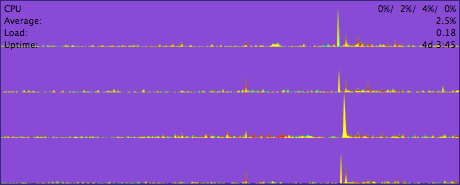
Today I was pleasantly surprised when Edward Miller sent some screenshots of XRG running on his new Quad G5 system. This is the coolest thing I’ve seen in awhile, so I thought I would post a crop of XRG’s CPU graph on a quad-processor system…

XRG was designed to work with n-processor systems years ago, but I couldn’t imagine seeing more than 2 processors in a Mac for a very long time. At the time it wasn’t really something I could test either…it worked on 2 processors, but who knew what would happen when there were more than 2 CPUs. It’s really cool to see this feature in action on 4 cores, and I can’t wait to see it on 8 core Macs.

Mac OSS Link

Open Source Mac is a simple list of the best free and open source software for Mac OS X. We aren’t trying to be a comprehensive listing of every open-source mac app, instead we want to showcase the best, most important, and easiest to use. This page should be a handy reference and a useful tool for getting more people to start using free and open-source software.”

Cool, they listed XRG in the Quick Links section on the bottom of page 2. There are some really good apps on the rest of the list, so check them out.

Happy Birthday XRG

XRG turns 3 today. XRG 0.1.1 was released on October 24, 2002. It’s been great working on the project, and I wrote up some memories and experiences when developing XRG on a separate page. I also spend some time talking about the early days of XRG, so definitely check it out.

Thanks to all the XRG users out there, here’s to several more years of XRG development.

Monitoring Toolkit (MTK)

One of the many tasks I’m working on at the moment is taking some monitoring code from XRG and molding plugins out of each graph module. I want to make it easy for other developers to include monitors in their code, and I really believe that this is an evolutionary step in XRG’s development cycle. The resulting code is going to be called MTK, or the Monitoring Toolkit, and it will be the new foundation that XRG and Dash Monitors will be built on.

Just to give a little insight as to how MTK will work, each monitoring module will be a Cocoa plugin bundle. Right now I have completed plugins for CPU, Network, Disk, and Memory. The plugin is fairly simple, and at the moment must follow a simple protocol: the principal class must contain methods to return a plugin name, a plugin short name, and an NSDictionary of key-value data. The dictionary keys are the names of the data fields, and the values are, well, the values for those data fields. This gives developers a very generic interface to write their own MTK plugins to work with any application that uses the MTK protocol. Of course applications like XRG that do a lot of graphing or custom drawing can require plugins to implement other protocols to handle it’s view, preferences or other properties. I’m still working out the details of how to manage multiple protocols in a single plugin.

MTK plugins wouldn’t have any purpose if there wasn’t an application to use them, so when MTK is introduced there will be a command line application (mtk) that will make use of any MTK plugins. The app will simply take arguments to define the time interval between updates and a directory of MTK plugins, and will continually output data returned by the plugins in CSV format (the column names are just printed out once at the beginning of execution). Then, any app or script can parse this CSV output and do what they want with it. I’ve already opened some captured data in Excel and played around with it. Of course if you don’t want the overhead of running a separate executable to output CSV data, simply write some code to load MTK plugins in your own application. The mtk command line application will be open source, and it’s only a single class, so it should serve as a good example of how to use MTK in your own applications.

I’m pretty excited about the architecture, and I’m looking forward to having XRG completely migrated over to MTK. I would love to see other developers come up with their own modules and see where the project goes. I’m hoping to get the initial version out on the web sometime in the next week or two, but there are a lot of things going on right now so it might have to be put on hold for a bit.

« Older posts Newer posts »

© 2026 *Coder Blog

Theme by Anders NorenUp ↑