Life, Technology, and Meteorology

Year: 2010

Modeling a Storm – Followup

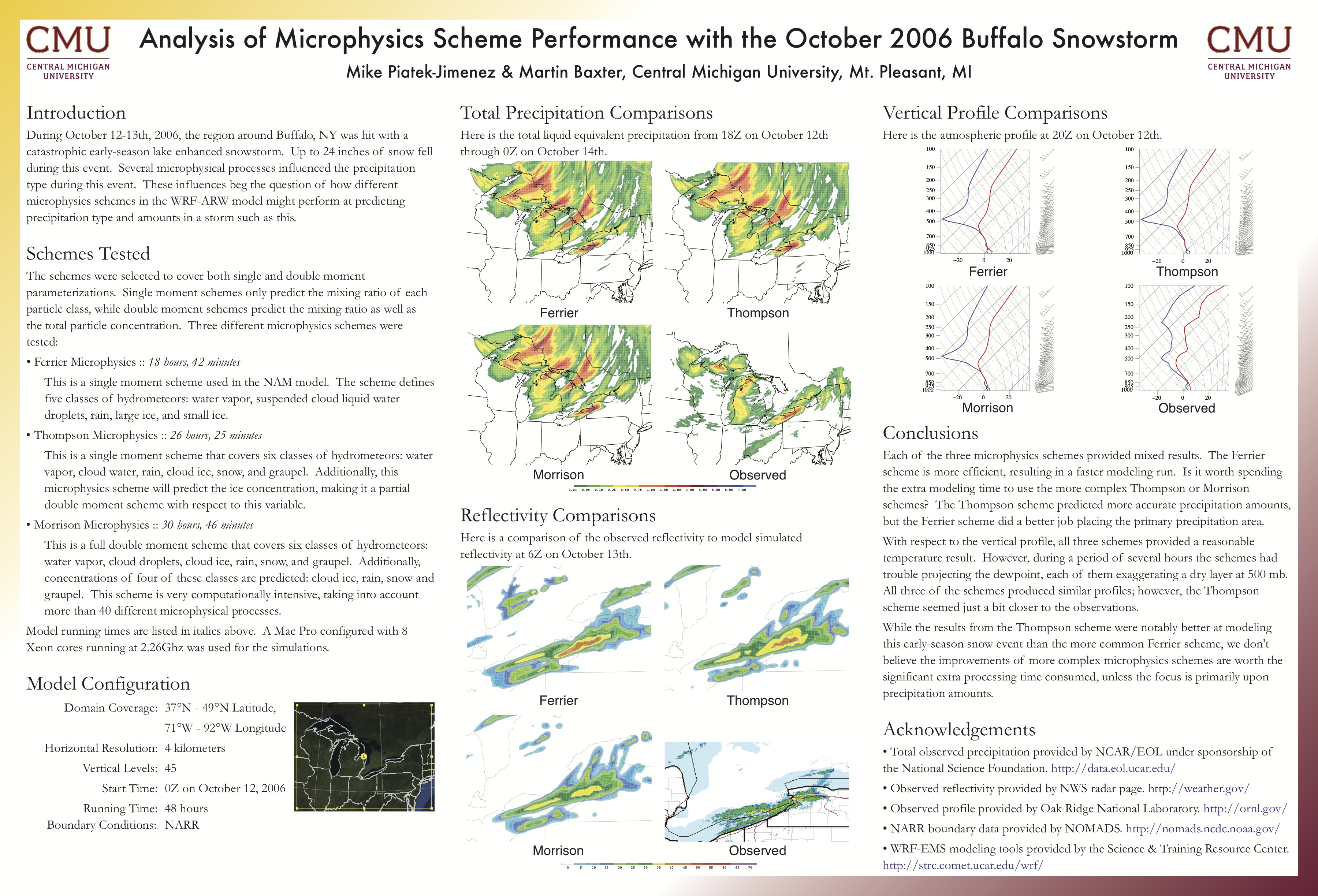
I talked about modeling the October 2006 Buffalo Snowstorm in my last blog entry. I just wanted to follow-up with the results. Here is an image showing the final poster.

I presented the poster at the National Weather Association’s Annual Meeting held in Tucson, AZ this past October. The poster session was about an hour and a half if I remember correctly, and during that time I had a chance to talk about the project with a lot of people. It was fun to discuss the outcome from all the work I did on the project. A few weeks later, I was pleasantly surprised to hear I had won the Best Undergraduate Student Poster Presentation award!

In the end, all the time and effort I put into it was well worth the results. I’m not sure if/when I will do this again, but I’ve learned a lot about what is involved in meteorology research, and have found that I rather enjoy it.

Modeling a Storm

One fairly common project for a meteorology student to participate in after taking a few years of coursework is to do a case study poster presentation for a conference. With finishing up my synoptic scale course series this past spring, now would be a good time for me to work on a case study. What does a case study involve? Well, typically synoptic storms are fairly short-lived, lasting for 4-10 days. With a case study, you take a closer look at what was happening dynamically in the atmosphere during that storm, usually over a smaller region.

Picking a storm to look at for me was easy. Four years ago this October, I was visiting family in upstate New York and a very strong storm came through the region. Usually storms in October would drop rain, but this one was strong and cold enough to drop snow, and the results were disastrous. In Buffalo, 23 inches of snow fell in 36 hours. Buffalo is used to getting this much snow in the winter, but since the leaves hadn’t fallen off the trees yet, a lot more snow collected on all the branches. Thousands of tree limbs fell due to the extra weight, knocking out power for hundreds of thousands of people. Some homes didn’t have power restored for over a week. When I drove around town the next day, it was like a war zone, having to dodge tree branches and power lines even on main roads in the city.

So it was easy for me to pick this storm (I even wrote about it back then). Next we (I’m working with my professor and friend, Marty, on this project) needed to pick something about the storm to focus upon. I can’t just put a bunch of pictures up and say, “Hey, look at all the snow!” There has to be some content. For this case study, Marty thought it might be interesting to look at how different microphysical schemes would effect a forecast over that time period.

This was a really tough event to forecast. Meteorologists could tell it was going to be bad, but with the temperature just on the rain/snow boundary, it was difficult to figure out just how bad it would be and where it would hit the hardest. If temperatures were a couple degrees warmer and this event resulted in rain instead of snow, it would have been a bad storm, but there wouldn’t have been the same devastation as there was with snow.

Microphysical schemes dictate how a forecast model transitions water between states. A microphysics scheme would determine what physical traits would have to be present in the environment to result in water vapor condensing to form liquid and create clouds, freeze into ice, or collide with other ice/water/vapor to form snowflakes. Some schemes take more properties of the atmosphere and physics into account than others, or weight variables differently when calculating these state changes. If I look at which scheme did the best job forecasting this event, then meteorologists could possibly run a small model with that same scheme on the next storm before it hits, to give them a better forecast tool.

To test these schemes, I have to run a model multiple times (once with each scheme). To do that, I had to get a model installed on my computer. Models take a long time to run (NOAA has a few supercomputers for this purpose). I don’t have a supercomputer, but my desktop Mac Pro (8×2.26 Ghz Xeons, 12 GB RAM) is a pretty hefty machine that might just let me run the model in a reasonable amount of time. I’m using the WRF-ARW model with EMS tools, which is commonly used to model synoptic scale events in academia. This model will compile on Mac OS X, but after a week of hacking away at it, I still didn’t have any luck. I decided to install Linux on the Mac and run it there. First I tried Ubuntu on the bare metal. It worked, but it was surprisingly slow. Next I tried installing CentOS in VMware Fusion, and it was actually faster (20%) than Ubuntu on the bare machine. The only explanation for this I can think of is that the libraries the model is compiled against were built using better compiler optimizations in the CentOS distribution. So not only do I get a faster model run, but I also can use Mac OS X in the background while it’s running. Perfect.

Once the model is installed, I have to setup a control run using parameters generally used in the most popular forecast models. There are several decisions that have to be made at this stage. First, a good model domain needs to be specified. My domain covers a swath 1720×1330 kilometers over most of the Great Lakes area, centered just west of Buffalo. For this large of a storm, a 4 km grid spacing is a pretty good compromise between showing enough detail and not taking years for the model to run. For comparison, the National Weather Service uses a 12 km grid spacing over the whole US to run their NAM forecast model 4 times a day. To complete the area selection, we have to decide on how many vertical levels to use in the model. Weather doesn’t just happen at the earth’s surface, and here I set the model to look at 45 levels from the surface up through around 50,000 feet. (I say “around” here because in meteorology we look at pressure levels, not height specifically, and with constantly changing pressure in the atmosphere the height can vary. The top surface boundary the model uses is 100 millibars.)

In case you didn’t notice, this kind of domain is quite large in computing terms. There is a total of 5,676,000 grid points in 3 dimensions. When the model is running, it increments through time at 22 second intervals. The model will calculate what happens at each of those grid points in that 22 seconds, and then it starts all over again. Usually, the model only writes out data after every hour, and I think it’s pretty apparent why this is the case. If I configured the model to output all the data at every time, there would be more than 44 billion point forecasts saved for the 2 day forecast run. Each of these forecasts would tell what the weather would be like at a particular location in the domain at a particular time, and each forecast would have around 30-50 variables (like temperature, wind speed, vorticity, etc). If those variables were simple 32 bit floats, the model would output about 6 TB of data (yes, with a T) for a single run. Obviously this is far from reasonable, so we’ll stick to outputting data every hour which results in a 520MB data file each hour. Even though we are outputting a lot less data, the computer still has to process the 6 TB (and the hundreds of equations that derive that data), which is quite incredible if you think about it.

My Mac is executing the control run as I’m writing this. To give you an idea, it will take about 12 hours for the model run to finish with VMware configured to use 8 cores (the model doesn’t run as quickly when you use hyperthreading) and 6 GB of RAM. This leaves all the hyperthreading cores and 6 GB of RAM for me to do stuff on the rest of my Mac, and so far I don’t notice much of a slowdown at all which is great.

So what’s next? Well after getting a good control run, I have to go back and test and run the model again for each of the microphysics schemes (there are 5-7 of them) and then look through the data to see how the forecast changes with each scheme. I’m hoping that one of them will obviously result in a forecast that is very close to what happened in real life. After I have some results, I will write up the content to fill a poster and take it with me to the conference at the beginning of October. The conference is in Tucson, which is great because I will have a chance to see some old friends while I’m there.

What does this mean for Seasonality users? Well, learning how to run this model could help me improve international Seasonality forecasts down the line. I could potentially select small areas around the globe to run more precise models once or twice a day. With the current forecast using 25-50km grid spacing, running a 12 km spacing would greatly improve forecast accuracy (bringing it much closer to the forecast accuracy shown at US locations). There are a lot of obstacles to overcome first. I would need to find a reasonably sized domain that wouldn’t bring down my server while running. Something that finishes in 2-3 hours might be reasonable to run each day in the early morning hours. This would be very long term, but it’s certainly something I would like to look into.

Overall it’s been a long process, but it’s been a lot of fun and I’m looking forward to not only sifting through the data, but actually attending my first meteorology conference a couple of months from now.
The Story of Go

With Seasonality Go just released, I thought I would post an entry looking back at all that has led up to my latest application.

This story begins with a tale of developing Seasonality 2.0 for the Mac. Last year, I officially ended all my contract work to focus solely on Gaucho Software products. This has been a great change, but things have been slow going. I was working for many months on Seasonality 2.0, and by the end of last year it was very clear that I bit off more than I could chew. Seasonality 2 was supposed to be a fresh start with a brand new interface. I really think the app needed it, but never underestimate the time it takes to redo an application interface.

Probably the biggest amount of time has been spent on the new 3D globe view that will show radar, satellite, and other data. To say I spent months on this single view would be an understatement. Was it worth it? It is tough to say. Right now it doesn’t offer much more than the original map interface in Seasonality 1.x, but if you take into account the possibility for future expansion, then I think it was worthwhile code to work on. You can judge for yourself once the software is completed and released (this code is not used in Seasonality Go, not enough memory is available for all the required texture images on the iPad).

In January, I was getting ready to let a designer take a look at the interface to clean up the loose ends and take a shammy cloth to the app, when it happened. “It”, in this case, is the iPad. Apple announced the product, and suddenly I had to stop and rethink my development direction. Should I keep working on finishing up Seasonality 2.0, or should I set that on the back burner and go after the iPad as a new platform for Seasonality?

If you follow me on Twitter, you know the iPad won. It was a tough decision, because Seasonality 2 was almost in beta, and it was ever-so-tempting to head to that light at the end of the tunnel as quickly as possible. But the iPad really excited me as a new platform. I was already wearing my old MBP pretty thin, and was planning on replacing it with a MacBook Air, but the iPad was even smaller and lighter than the MBA, and it did 90% of what I needed it to at less than half the cost. It wasn’t tough to decide to purchase one as my new laptop, and if the iPad was going to be my new mobile platform, I wanted Seasonality to be there too.

I started working immediately on getting my weather and foundation frameworks compiling on the iPhone SDK. It took much less time than I anticipated to do this, which was a pleasant surprise. The views took a little bit longer, because UIKit on the iPhone/ iPad definitely has some distinct differences from Cocoa on the Mac. Overall though, it only took about a week to get the software running in a reasonable state on the iPad simulator.

It was at this point that I decided to talk to a UI designer. I enrolled the help of FJ de Kermadec. I had worked with FJ previously on the DynDNS Updater for the Mac, and I felt he really had what it took to knock a new Seasonality iPad interface out of the park. I was not disappointed. First, FJ worked on the Seasonality brand. We had to find a good way for the iPad version of Seasonality to fit into my product lineup. FJ came back with a complete branding document that described the future product lineup, complete with product names, icons, slogans, colors, fonts, and goals for each app. It was great, and I really got on board with the direction this project was taking. The new iPad app was to be called Seasonality Go, and it would be an iPad user’s go-to guide for weather on-the-go.

Next, FJ spent some time working on a document describing the features of Seasonality Go–how the software would look and behave. The plans set out by this document were ambitious, and it would be months before I would have the time to finish all of them, but the direction was solid and it was great to have this vision of a future Seasonality Go, even before I got a true start on the first version. We decided on a starting subset of functionality, and FJ got to work on a UI mockup for the features selected.

The mockup came in the middle of March, and I hit the ground running hard after that. The Seasonality Go design was nothing like the Seasonality Mac design, so I scrapped the view code from before and just built new views from the weather and foundation frameworks I have. Good progress was made, and by the time my iPad 3G arrived at the end of April, I actually had an app that was pretty usable to test on it.

I obviously wasn’t finishing the app for launch day of the iPad, but I didn’t want to wait too long to release the app. I decided I had to set a deadline, and I chose to finish it absolutely no later than WWDC. So from the end of April through the end of May, I spent pretty much 24/7 working on it. I would get up early, work all day, come up for dinner when Katrina got home from the office, spend an hour or two hanging out, then went back downstairs and work until 1-2am. I made a ton of progress, and by the third week of May, I had an app that was ready to beta test. The beta testers (thanks Elliot, Mary, and Jim!) hammered on it for about a week, and I had 1.0 ready a week later. I submitted it to the App Store on May 21st.

Looking back, it has been a long road, but I think this app really turned out to be a great piece of software. Altogether, it is around 45,000 lines of code, which is 3 times more than Seasonality 1.0 for the Mac. Now I will be getting back to finishing Seasonality 2.0. There are some amazing features there that didn’t make it into Seasonality Go, so stay tuned for the rest of what I have been working on…

Satellite Map Projections

Seasonality displays a IR composite satellite image that covers the whole globe. Unfortunately, during the past few weeks, the previous source of this satellite image ceased to update. It was time to write my own program to create a composite image.

The toughest part of this process (at least for us non-GIS types) is handling the geometry involved in converting map projections. It was extremely difficult for me to piece all of this together into something that works, as no one has posted any kind of solution online. I thought I might save some other people the trouble, and post the solution.

To create a composite, the basic algorithm is to iterate over a map of your chosen projection and to query the various satellite image sources for a color value for the latitude/longitude point you are currently generating. Once you have a color, you can simply set that color for the pixel that it applies to in your new map. I use a mercator/cylindrical style projection in the final map, with equal pixel distance for a change in latitude or longitude. This results in an image that is twice as wide as it is tall, with 360 degrees all the way around the equator along the X axis, and 180 degrees from the north pole to the south as the Y axis.

The tough part is that query to the source satellite image. The projection of these satellite images has a few different names. Officially it’s a Vertical Perspective Near-Side projection, but it’s also known as the GEOS projection. I boiled it down into a request:

float getPixelForLatLon(float latitude, float longitude)

Satellite images are 1-channel grayscale, so just returning a single float with the gray value works fine here. Now before we can understand what is going on, here are some of the rules and assumptions taking place here. First, the satellite is in geosynchronous orbit, at an elevation of 35,786 kilometers above the surface of the earth. The satellite is above the equator (so latitude=0) and the longitude varies based on the portion of the earth being covered.

With that in mind, let’s look at the pseudocode for this function.

// First convert from degrees to radians.
float latitudeRad = degrees2Radians(latitude);
float longitudeRad = degrees2Radians(longitude);
float satelliteLonRad = degrees2Radians(satelliteLongitude);

// Now for a bunch of trig equations.

// c_lat is the corrected angle the given latitude is above the equator
// after taking into account the ellipsoid shape of the earth.
// Here, 0.993243 is the polar radius (6356.5838 km)
// divided by the equator radius (6378.1690 km).
float c_lat = atan(0.993243 * tan(latitudeRad));

// r_L is the radius from the center of the earth to the given point.
float r_L = 6356.5838 / sqrt(1 - (0.00675701 * cos(c_lat) * cos(c_lat)));

// r_[123] are xyz components of the vector from the satellite
// to the point on earth.
float r_1 = 42164 - (r_L * cos(c_lat) * cos(longitudeRad - satelliteLonRad));
float r_2 = -1 * r_L * cos(c_lat) * sin(longitudeRad - satelliteLonRad);
float r_3 = r_L * sin(c_lat);

// r_N is the distance from the satellite to the point on earth.
float r_N = sqrt(r_1 ** 2 + r_2 ** 2 + r_3 ** 2);

// Finally we get to an intermediate x, y coordinate.
// These are NOT x, y coordinates in the image.  Rather,
// they are angles (in radians) that the satellite camera
// would have to rotate off-center to see that lat/lon
// location.  If x = y = 0, then the camera is looking directly
// at the earth point underneath it.  Positive X rotates to the
// right, positive Y rotates down towards the south.
float int_x = atan2(-r_2, r_1);  // Equivalent: atan(-r_2 / r_1)
float int_y = asin(-r_3 / r_N);

// We got to this point without knowing anything about our
// actual satellite image, now it's time to look at the
// full disc satellite image we are working with.
// Note that coordinates x = y = 0 in the upper-left corner
// of the image.

// offset_x is the number of pixels that pad the disc on the left.
// offset_y is the number of pixels that pad the disc on the top.
// x_radius is the radius of the disc in the horizontal direction.
// y_radius is the radius of the disc in the vertical direction.
float x = offset_x + x_radius + (int_x * 6.6073212476 * x_radius);
float y = offset_y + y_radius + (int_y * 6.6073212476 * y_radius);

// Here, get the pixel in the satellite at position x, y, and return it.

That’s it! You now have a color from the x, y position in the full disc satellite image, and you can paint that in the final satellite composite. Note that the satellite composite will not have data on the poles, because the satellite can only see to a latitude of 81.3 degrees. You can see sample output of a composite image using this method (overlaid on a standard earth map). To find more information about how this works, check out the WMO document number C1-SP-810-004.

© 2026 *Coder Blog

Theme by Anders NorenUp ↑